

Sage Accounting Software ~ Quick Support
Sage Accounting Software Quick Solutions
We can’t always control the environment in which we operate. We will provide solutions to various issues that arise in order to offer quick answers to these problems.
How to fix APPEND GENERAL BMP file OLE Error
Microsoft has updated the program that SBT, ACCPAC Pro, and Sage Pro ERP use to render the image on forms, Paint. It will no longer use OLE (Object Linking and Embedding) to render these pictures or Logos. This is how you can repair the APPEND GENERAL BMP file OLE Error problem.
- Go to the root directory in Sage Pro and rename LOGOnn.BMP in the root folder to a new name. I called mine LOGOFIXED01.BMP.
- Log into SBT/ACCPAC/Sage Pro.
- Go to AR (or another module) and go to the customize form interface under Maintain
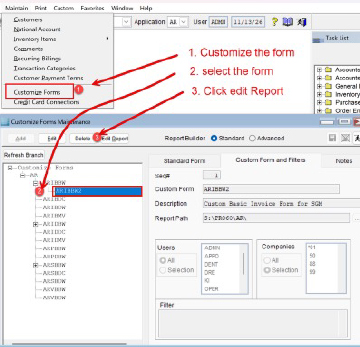
- Double left click on the logo in the form when it comes up. Framed in green.
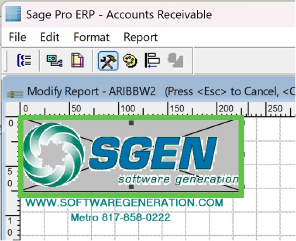
- Edit each custom form, changing the logo from the GENERAL field, if that is what it is, to your renamed LOGOnn.BMP file.
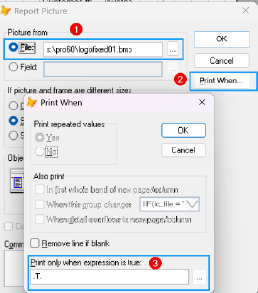
This properties box should come up when you double click the logo.
- Set this to file and link to your new logo name.
- Click print when.
- Edit “Print only when expression is true” block remove the conditional code that looks for something in the GENERAL field. Enter .T. (a period, a letter T for true and another period) replacing whatever was there.
- Press Ctrl+w to save the form.
- Go to SO, PO modules, in turn, and walk through the Customize Forms UI in each.
- You might get this error when saving the form.
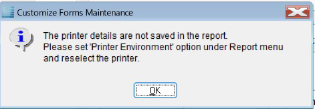
Go back into the form and click on report and then printer environment on the top. There should be a check mark before it. Lock on it to toggle it off or on.
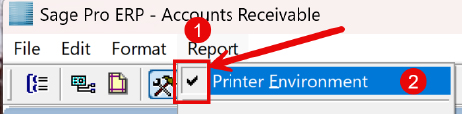
Do Ctrl+W again to save the form.